






You can place your first trade on MetaTrader 5 in about five minutes. Doing it well takes a little more care. You need a clear market, a defined risk, and a plan for where the trade ends before you click anything.
This guide walks through the full workflow in the order traders actually use it. You will set up an account, read the platform, size your risk, place a market order, manage the trade, and close it. Then you will learn pending orders, one-click trading, and the mistakes that cost beginners the most.
- Download MT5 and log in to a demo account from your broker.
- Open a chart for one market, such as EUR/USD.
- Read the trend and mark support and resistance.
- Decide your risk (for example, 1% of your balance) and calculate your lot size.
- Press F9, enter the volume, and set your Stop Loss and Take Profit.
- Click Buy by Market or Sell by Market.
- Track the trade in the Toolbox, then close it when your plan says so.
MetaTrader 5 is a trading platform, not a broker. You need a broker account to reach real markets. The platform gives you charts, indicators, order tools, and trade management in one place. (MetaTrader 5 Help)
What Is MetaTrader 5?
MetaTrader 5 (MT5) is a trading platform built by MetaQuotes. Brokers license it and offer it to their clients. You download the software, log in with your broker’s details, and trade through your broker’s servers.
That difference matters. The platform shows prices and sends your orders. The broker holds your money, sets the spreads, and decides which markets you can trade. Two traders on MT5 can see different instruments and pay different costs if they use different brokers.
Markets on MT5 depend on the broker. Most offer some mix of these:
- Forex pairs such as EUR/USD and GBP/USD
- Stocks and stock CFDs
- Indices such as the NASDAQ 100 and S&P 500
- Commodities such as gold and oil
- Crypto CFDs (only if your broker lists them)
MT5 packs a lot into one window. You get several order types, built-in technical indicators, an economic calendar, one-click trading, and automated trading through Expert Advisors. It also offers 21 chart timeframes. (MetaTrader 5 charts)
MT5 uses one of two position systems, and your broker chooses which one. On a hedging account, every new trade opens a separate position. On a netting account, you hold one position per symbol, and new trades add to it or reduce it. (MetaQuotes: MT5 trading system) Beginners often get confused when a second Buy does not open a second trade. Netting is the usual reason.
Step 1: Open an MT5 Trading Account
You have two account choices: demo or live. A demo account uses virtual money and live prices. A live account uses your real funds.
Start with a demo account. It lets you learn the order ticket, the shortcuts, and the platform’s habits without risking cash. Most brokers offer demo accounts for free.
How to connect your account
- Download MT5 from your broker’s website or from the official MetaTrader 5 download page.
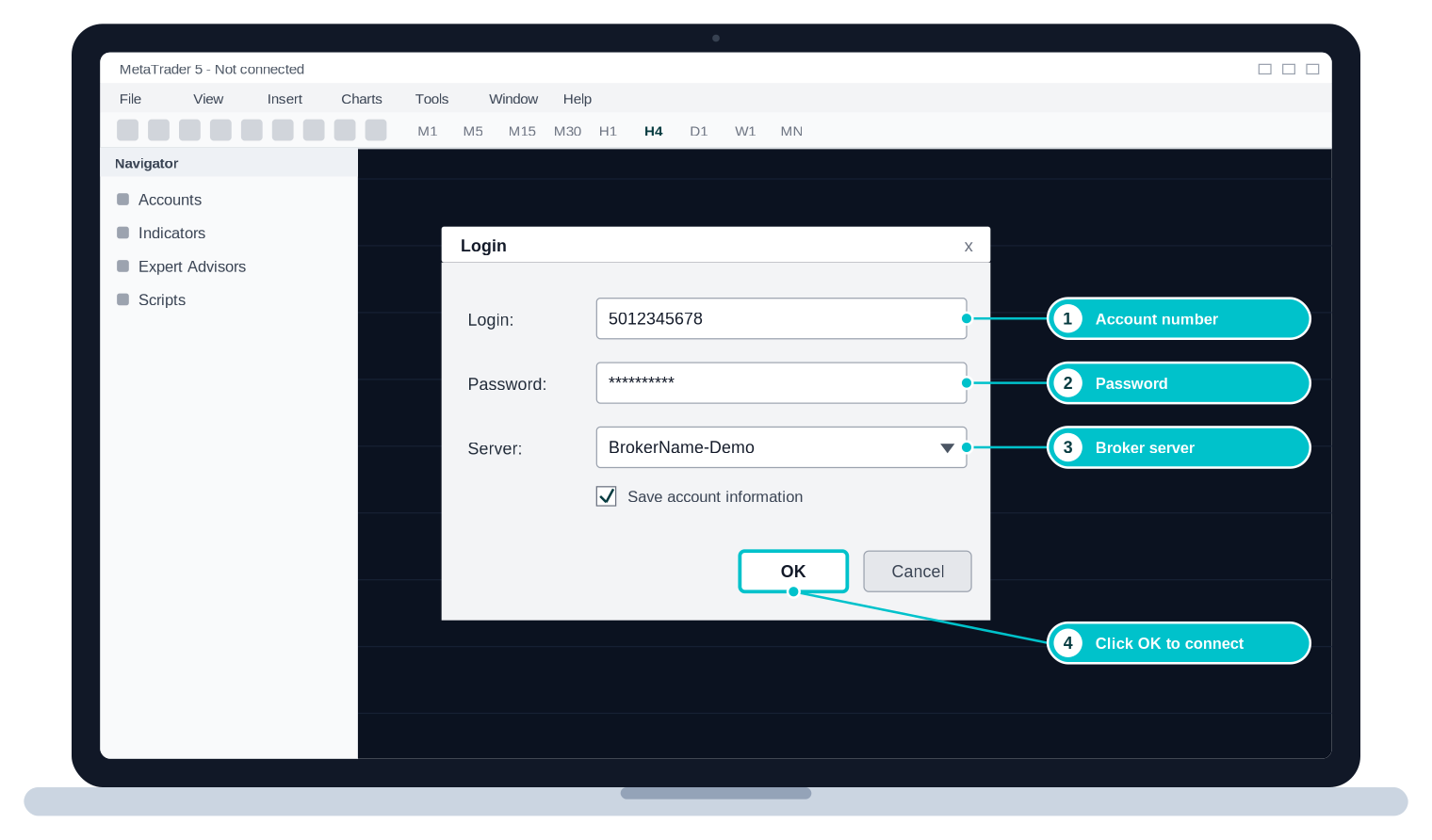
- Open the platform and click File → Open an Account. Search for your broker’s name and pick its server.
- Choose Demo to create a practice account, or log in to an existing account with the details your broker emailed you.
- Enter the login number, password, and server. Click Finish or OK.
- Check the bottom-right corner. It shows your connection status, and the Toolbox shows your balance.
You can move to a live account once you can place, manage, and close trades without hesitation. If you still need a broker, see our guide to Best MT5 Brokers 2026.
Understanding the MT5 Interface
The MT5 screen looks busy at first. You only need five areas to place a trade.
Area |
What it shows |
Shortcut |
|---|---|---|
Market Watch |
Your symbols, with live bid and ask prices |
Ctrl+M |
Chart window |
Price movement, indicators, and your trade lines |
– |
Navigator |
Accounts, indicators, and Expert Advisors |
Ctrl+N |
Toolbox |
Open positions, orders, trade history, and alerts |
Ctrl+T |
One-click panel |
Fast Buy and Sell buttons on the chart (when enabled) |
Top-left of chart |
Bid is the price at which you can sell. Ask is the price at which you can buy. The gap between them is the spread, and it is your first cost on every trade.
Step 2: Choose a Market to Trade
Pick one market and stay with it while you learn. Each market moves differently, and jumping between them hides your mistakes.
How to open a chart
- Find your symbol in Market Watch.
- Right-click it.
- Choose Chart Window.
If the symbol is missing, right-click inside Market Watch, choose Symbols, search for it, and click Show.
Good starting points include EUR/USD, gold (XAU/USD), the NASDAQ 100, and Bitcoin. Symbol names change by broker. Gold may appear as XAUUSD, and the NASDAQ may appear as US100 or NAS100. Always check the symbol’s contract details before you trade it.
EUR/USD is a common first choice. Its spreads are usually tight, and it trades for most of the day.
Step 3: Analyse the Market Before Trading
Analysis tells you whether a trade is worth taking. You do not need ten tools. You need a clear view of trend, key levels, and one or two confirmations.
Identify the trend
Start on a higher timeframe such as H4 or Daily. Ask a simple question: is price making higher highs and higher lows (uptrend), lower highs and lower lows (downtrend), or moving sideways (range)? Trading with the trend gives you the cleanest setups.
Mark support and resistance
Support is a price zone where buyers have stepped in before. Resistance is a zone where sellers have stepped in. Learn how to draw both in our guide to Support and Resistance Explained.
Read the candles
Each candle shows the open, high, low, and close for a period. Strong candles near key levels often signal a decision point. Our guide on How to Read Candlestick Charts covers the patterns that matter.
Add a simple indicator
To add one, click Insert → Indicators and pick a category. Three common choices are:
- Moving Average: smooths price to show trend direction.
- RSI (Relative Strength Index): measures momentum and shows overbought or oversold conditions.
- MACD: compares two moving averages to show momentum shifts.
For the full framework, read What Is Technical Analysis?.

Step 4: Calculate Your Risk Before Entering
Decide how much you can lose before you decide how much you can win. Professional traders do this first, and it protects you from the account-ending trade.
Risk amount = Account balance × Risk %
Example: $1,000 balance × 1% = $10 maximum loss on the trade.
Turn that risk into a lot size
The lot size sets how much each pip is worth. A pip is the standard small move in a forex price. For EUR/USD, it is the fourth decimal place (0.0001).
Lot type |
MT5 volume |
Units of currency |
EUR/USD value per pip (approx.) |
|---|---|---|---|
Standard |
1.00 |
100,000 |
$10.00 |
Mini |
0.10 |
10,000 |
$1.00 |
Micro |
0.01 |
1,000 |
$0.10 |
Use this formula to find your volume:
Lots = Risk amount ÷ (Stop Loss in pips × value per pip per 1.00 lot)
Example: $10 ÷ (50 pips × $10) = 0.02 lots.
Check the result: 0.02 lots is worth about $0.20 per pip. A 50-pip stop then costs about $10, which is exactly 1% of the account. Pip values vary by pair and account currency, so confirm them in your broker’s contract specifications.
Mistakes to avoid at this step
- Trading a lot size that is too large for your balance
- Skipping the Stop Loss
- Risking more than 1-2% of your account on one trade
Step 5: Place Your First Trade
A market order buys or sells right now at the current price. Choose Buy when you expect price to rise. Choose Sell when you expect it to fall.
Your broker sets how MT5 executes the order. MT5 supports four modes: instant, request, market, and exchange execution. (MetaQuotes) The order ticket looks nearly the same in each, but fills and slippage can differ.
How to place a market order
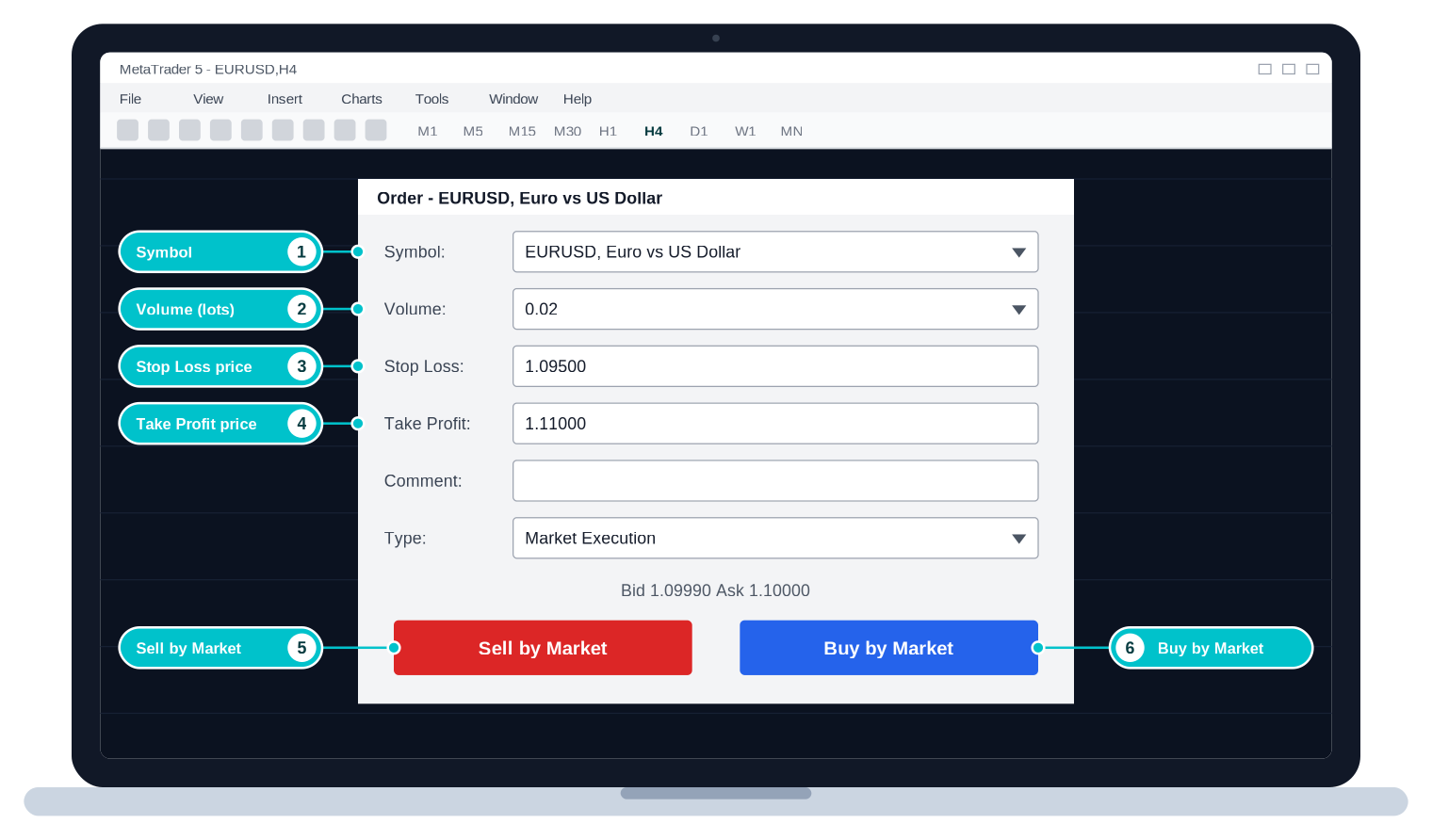
- Press F9, or right-click the chart and choose Trading → New Order.
- Confirm the Symbol.
- Enter the Volume from Step 4 (for example, 0.02).
- Enter your Stop Loss and Take Profit prices.
- Click Buy by Market or Sell by Market.
The trade now appears in the Toolbox under the Trade tab. Remember that you buy at the ask price and sell at the bid price, so a new trade starts slightly in the red by the size of the spread.
Step 6: Use Stop Loss and Take Profit Properly
A Stop Loss (SL) closes your trade automatically at a set loss. It caps the damage when you are wrong. A Take Profit (TP) closes the trade automatically at a set gain. It locks in profit when price reaches your target.
Place your Stop Loss where your trade idea fails, not at a random distance. For a Buy, that usually means just below support. For a Sell, just above resistance.
Example trade
Item |
Price |
Distance |
|---|---|---|
Entry (Buy) |
1.1000 |
– |
Stop Loss |
1.0950 |
50 pips below entry |
Take Profit |
1.1100 |
100 pips above entry |
This trade risks 50 pips to make 100 pips. That is a 1:2 risk-to-reward ratio.
Why risk-to-reward matters
A better ratio lets you be wrong more often and still stay profitable. This table shows the win rate you need just to break even, before spreads and commissions:
Risk-to-reward |
Win rate needed to break even |
|---|---|
1:1 |
50% |
1:2 |
33% |
1:3 |
25% |
Spreads and commissions push those numbers higher in real trading. Use the table as a guide, not a promise.
You can also trail your stop. Right-click an open position in the Toolbox and choose Trailing Stop. MT5 then moves your Stop Loss behind price as the trade gains, and it never moves the stop backward.
Step 7: Monitor Your Open Trade
Open the Toolbox with Ctrl+T and click the Trade tab. Each open position shows its symbol, volume, open price, Stop Loss, Take Profit, and current profit or loss.
The account line at the top of the tab shows the numbers that keep you safe:
Term |
Plain-English meaning |
|---|---|
Balance |
Your account money without open trades |
Equity |
Balance plus or minus your floating profit or loss |
Margin |
The money your broker locks to hold your open trades |
Free Margin |
The money you can still use for new trades |
Margin Level |
Equity divided by margin, shown as a percentage. If it falls too low, your broker may close trades. |
When to adjust a trade
- Move the Stop Loss to your entry price (break-even) after price moves well in your favour.
- Take partial profit by closing part of the volume at your first target.
- Close early only if your reason for the trade no longer holds, not because you feel nervous.
Avoid moving your Stop Loss further away. That turns a planned small loss into an unplanned large one.
Step 8: Close a Trade
Close it manually
- Open the Toolbox and click the Trade tab.
- Right-click the position.
- Choose Close Position.
You can also click the small X at the end of the position row. On a hedging account, close the correct position if you hold more than one on the same symbol.
Let it close automatically
MT5 closes the trade for you when price hits your Stop Loss or Take Profit. You do not need to watch the screen. This is one reason a defined exit matters.
Understanding Pending Orders
A pending order waits for price to reach a level you choose, then opens the trade for you. Traders use them because the best entry is often not the current price.
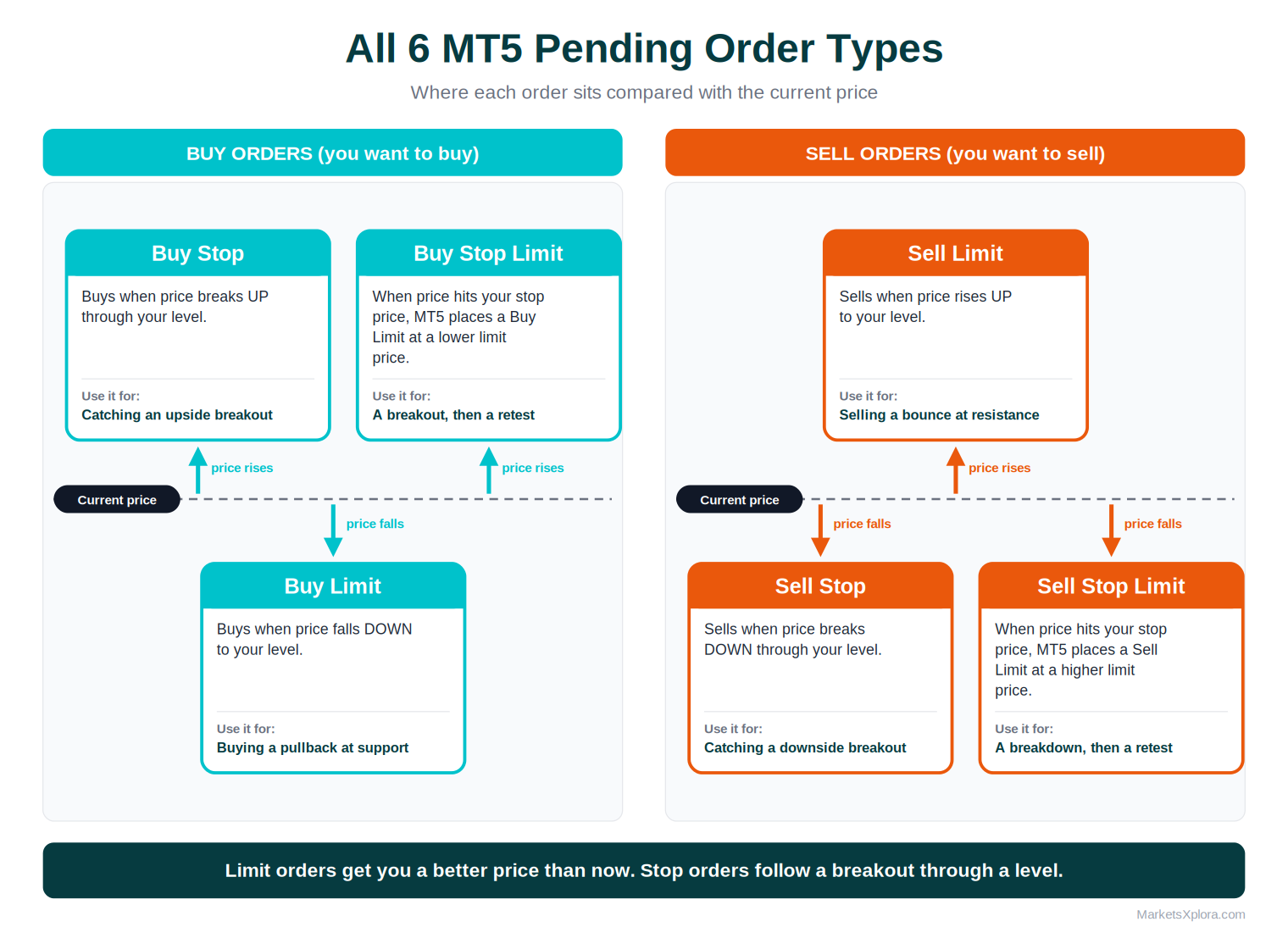
MT5 offers six pending order types. (MetaQuotes) Press F9, change Type to Pending Order, and pick one from the list.
Order |
Where you set it |
What it does |
When traders use it |
|---|---|---|---|
Buy Limit |
Below current price |
Buys when price falls to your level |
Buying a pullback at support |
Sell Limit |
Above current price |
Sells when price rises to your level |
Selling a bounce at resistance |
Buy Stop |
Above current price |
Buys when price breaks up through your level |
Catching an upside breakout |
Sell Stop |
Below current price |
Sells when price breaks down through your level |
Catching a downside breakout |
Buy Stop Limit |
Stop price above current price |
When price hits the stop price, MT5 places a Buy Limit at your lower limit price |
Buying a breakout, then waiting for a retest |
Sell Stop Limit |
Stop price below current price |
When price hits the stop price, MT5 places a Sell Limit at your higher limit price |
Selling a breakdown, then waiting for a retest |
Pending orders also carry an expiration setting. You can leave them open until cancelled, cancel them at the end of the day, or pick a date and time.
The simple way to remember the difference: Limit orders buy cheaper or sell higher than the current price. Stop orders buy higher or sell lower, because they follow a breakout.
How to Use One-Click Trading in MT5
One-click trading sends an order the moment you press a button, with no confirmation window. It is fast. It is also easy to misuse.
Advantages |
Risks |
|---|---|
|
|
How to enable it
- Click Tools → Options.
- Open the Trade tab.
- Tick One Click Trading and confirm.
MT5 then shows a small Buy/Sell panel on the chart. (MetaTrader 5 platform settings) Set your volume in the panel before you click. Beginners should leave this feature off until they trust their routine.
Common MT5 Trading Mistakes Beginners Make
1. Trading without a Stop Loss
One bad trade without a stop can erase weeks of progress. Set the Stop Loss in the order ticket, every time.
2. Risking too much per trade
Large risk turns normal losing streaks into account-ending ones. Keep each trade to 1% or less while you learn.
3. Ignoring spread costs
The spread is a cost you pay at entry. Wide spreads hurt small, short-term trades the most, especially around news and at market open.
4. Overtrading
More trades do not mean more profit. They mean more spread, more stress, and more mistakes. Wait for setups that match your plan.
5. Trading news without preparation
Prices can jump fast during major releases, and fills can slip. Check the MT5 economic calendar before you trade, and avoid new trades just before big events.
6. Entering random trades
If you cannot explain why you entered, you are guessing. Write a one-line reason before every trade and keep a journal.
Example MT5 Trade From Start to Finish
This scenario uses hypothetical numbers to show the process. It is not a trade recommendation or a real result.
Step |
What the trader does |
|---|---|
Market |
EUR/USD on the H4 chart |
Trend |
Higher highs and higher lows, so the trend is up |
Setup |
Price pulls back to a support zone near 1.0970-1.0990 and holds for the second time. A bullish candle closes above it. |
Risk |
1% of a $1,000 account = $10 |
Entry |
Buy at 1.1000 |
Stop Loss |
1.0950, just below the support zone (50 pips) |
Take Profit |
1.1100, near the previous swing high (100 pips) |
Volume |
$10 ÷ (50 × $10) = 0.02 lots |
Now consider the two possible outcomes:
- Win: Price reaches 1.1100. The trade makes about $20, or 2% of the account.
- Loss: Price falls to 1.0950. The trade loses about $10, or 1% of the account.
Either result is acceptable, because the trader knew the loss before entering. That is the point of the process. One trade does not prove anything. A set of 50 or 100 trades starts to show whether your method works.
Advanced MT5 Features to Explore Later
Once the basics feel natural, MT5 has more to offer. Learn these one at a time.
Feature |
What it does |
|---|---|
Indicators |
Built-in and custom tools for trend, momentum, volatility, and volume |
Templates |
Save a chart layout, with its indicators, and reuse it on any symbol |
Profiles |
Save a full workspace of open charts and reload it in one click |
Economic calendar |
Shows scheduled news releases inside the platform |
Market Depth |
Shows order-book data where your broker supplies it |
Expert Advisors (EAs) |
Automated trading programs. Test them on a demo account first. |
Copy trading |
Lets you follow other traders’ signals. Copying carries real risk, including slippage and provider risk. |
Recommended Next Steps
- How to Read Forex Charts
- How to Read Candlestick Charts
- What Is Technical Analysis?
- Support and Resistance Explained
- Best MT5 Brokers for Beginners
- Best MT5 Brokers for Scalping
- Best Copy Trading Brokers
Conclusion
MT5 is a powerful platform, and the basics are simple. Pick one market, read the chart, size your risk, and place the trade with a Stop Loss and Take Profit. Then manage it by your plan.
Key lessons
- MT5 is the platform, not the broker.
- Analyse before you enter.
- Risk management comes first.
- Use a Stop Loss on every trade.
- Aim for consistency, not quick profit.
Your beginner action plan
- Open a demo account.
- Learn to move around the charts and Market Watch.
- Practise placing, adjusting, and closing trades.
- Risk no more than 1% per trade.
- Move to a live account only after you show steady results on demo.
Trading forex and CFDs on leverage carries a high risk of loss, and you can lose more than you expect. Most retail traders lose money. Regulated brokers in the EU and UK must publish the share of retail clients who lose money on CFDs, and most report a majority. Trade only with money you can afford to lose. This article is educational content and not financial advice.
Frequently Asked Questions
Is MetaTrader 5 good for beginners?
Yes, if you start on a demo account. MT5 has a learning curve, but its charts, order ticket, and trade tools are easy to use once you know where they sit. Practise with virtual money first.
Can I trade stocks on MT5?
Yes, if your broker offers stocks or stock CFDs on the platform. MT5 supports stock trading, but the list of available stocks depends on the broker.
Is MT5 better than MT4?
MT5 has more features. It offers 21 timeframes against 9 on MT4, six pending order types against four, market depth, a built-in economic calendar, and both netting and hedging accounting. MT4 still has a large library of older tools and is simpler. Expert Advisors are not compatible between the two.
How much money do I need to trade on MT5?
It depends on the broker. Minimum deposits vary widely, and some accounts start very low. A small balance also limits your lot size, because a 1% risk on a $100 account is only $1. Check each broker’s minimum deposit and contract sizes.
Can I use MT5 on mobile?
Yes. MT5 has apps for iPhone, iPad, and Android, plus a web terminal for your browser. Mobile is handy for monitoring trades, but most traders prefer the desktop for analysis.
What is the difference between Buy Limit and Buy Stop?
A Buy Limit sits below the current price and buys when price falls to your level. A Buy Stop sits above the current price and buys when price breaks up through your level. Limit orders buy cheaper, and stop orders follow a breakout.
Can I trade crypto on MT5?
Yes, if your broker lists crypto instruments. Most brokers offer crypto as CFDs, so you trade price moves and do not own the coins. Availability, spreads, and trading hours vary by broker.
How do I set a Stop Loss in MT5?
Press F9 to open the order window and type your Stop Loss price in the S/L field before you click Buy or Sell. For an open trade, right-click the position in the Toolbox, choose Modify or Delete, and enter the S/L price. You can also drag the trade line on the chart.
Is MT5 free to use?
The platform is free to download. Your costs come from the broker, usually through spreads, commissions, and overnight swap fees. Some paid add-ons exist in the MQL5 Market, but you do not need them.
Can I make money trading with MT5?
It is possible, but it is not guaranteed. MT5 is a tool, and results depend on your strategy, discipline, and risk control. Many retail traders lose money, so treat trading as a skill to build slowly, starting on a demo account.
About the author
Samson Ononeme is the founder of MarketsXplora, an independent financial education and research platform covering cryptocurrency, forex, brokers, exchanges, trading platforms, and blockchain technology. He has more than 12 years of experience in financial content, with bylines at EarnForex, Kryptomoney, Cryptorunner, and AtoZ Markets. He turns complex financial products into clear, practical information that readers can use when they compare their options. Connect on LinkedIn and X.